Contents

Pixel-Perfect simulated ESPHome displays

How to quickly iterate on displays without leaving your desk

The front door display has been serving me well. However, updating the UI was a tedious process. Because every pixel counts on a tiny screen, I found myself in a frustrating loop of tweaking the config, flashing the firmware, and waiting - only to find I was still one pixel off. These iterations are particularly annoying because:

  1. It’s a bit far from my desk (I could move it to my desk, but then would feel pressure to finish very quickly, as the device isn’t there)
  2. The ESP8266 doesn’t love being remote-flashed over and over again; I’ve found myself needing to re-flash over USB, or even hard-bricking a couple.

For this reason, I’ve looked for tools to help me iterate on the design without physically flashing the device. There are quite a few!

TL;DR
Use ESPHome SDL Display to iterate quickly on your ESPHome UIs.

Design and simulation tools

For sketching initial layouts, there are some great web-based tools. Lopaka is fantastic (though with some limitations about fonts in the free version, and no esphome support yet in the self-hosted version). There are similar tools like DisplayGenerator and the more powerful ESPHomeDesigner. These tools are great for playing around with what your UI might feel like, and also come with icons you can use.

These tools generally create a long lambda, like those seen in the ESPHome display docs. While it’s great for prototyping, it’s often quite helpful to move things over to a separate C++ file, which you can then manipulate with purpose-build C++ editors and tools. For instance, here’s some of my current code for the front door display:

 1
 2
 3
 4
 5
 6
 7
 8
 9
10
11
12
13
14
15
16
17
18
19
# ESPHome YAML
esphome:
  includes:
    - drawing.h

esp8266:
  board: nodemcuv2

i2c:
  sda: D1
  scl: D2
  frequency: 800khz

display:
  - id: main_display
    update_interval: 0.05s
    platform: ssd1306_i2c
    model: "SSD1306 128x64"
    lambda: "draw_screen(it);"
 1
 2
 3
 4
 5
 6
 7
 8
 9
10
11
12
13
14
15
16
17
18
19
20
21
22
// drawing.h
#pragma once
#include "esphome.h"

template <typename T> void draw_screen(T &it) {
  const char *alarm_state_str =
      id(alarm_state).has_state() ? id(alarm_state).state.c_str() : "?";

  it.print(1, 11, &id(profont15), TextAlign::BOTTOM_LEFT, "Alarm:");

  it.printf(1, 36, &id(profont29), TextAlign::BOTTOM_LEFT, "%s",
            alarm_state_str);

  if (id(alarm_state).state == "On" || id(alarm_state).state == "Arm") {
    id(frame_counter) += 1;
    if (id(frame_counter) % 32 < 16) {
      it.image(51, 0, &id(img_lock), COLOR_OFF, COLOR_ON);
    }
  }

  // ...
}

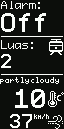
Clearly, this has a lot of magic numbers that were repeatedly tweaked; that 36 was previously 39, 32, 35… every attempt taking a two-minute firmware flash. The logic for “what to show if the API hasn’t connected yet” is also something that went through a few iterations. All of these things need to “really run ESPHome”; let’s see if we can do it right on our PC though.

For general-purpose “simulate your entire ESPHome electronics setup”, ESPHome-Device-Sim is a small wrapper around Wokwi. It can simulate a wide variety of devices. However, if all you need is a display, like my case, there’s a much simpler way to do this.

Host platform

ESPHome’s Host Platform basically allows you to run an esphome as a process on your Linux (or Mac, or WSL) computer. The UI uses SDL - there’s an SDL Display (with touchscreen support), and you can use your keyboard as a binary_sensor with SDL Binary Sensor. No firmware flashing, very quick iteration.

For our case, all we need is the display; we can keep our drawing code the same, and the YAML looks like this:

 1
 2
 3
 4
 5
 6
 7
 8
 9
10
11
12
13
14
15
16
17
18
19
esphome:
  name: front-door-display
  friendly_name: Front door display sim
  includes:
    - drawing.h

# remove i2c and esp8266 sections

host:
  mac_address: "06:35:69:ab:f6:79" # Any address will do

display:
  - id: extend main_display
    dimensions:
      height: 128
      width: 64
    platform: sdl
    update_interval: 0.05s
    lambda: "draw_screen(it);"

That looks like this:

/posts/pixel-perfect-simulated-esphome/screenshot.webp

To make things nice and maintainable, I want to have the “real” and “simulated” versions share code. I use packages with extend to make this reasonably clean and maintainable.

Full source code
 1
 2
 3
 4
 5
 6
 7
 8
 9
10
11
12
13
14
15
16
17
18
19
20
21
22
23
24
25
26
27
28
29
30
31
32
33
34
35
# front-door-display.yaml
esphome:
  name: front-door-display
  friendly_name: Front door display

esp8266:
  board: nodemcuv2

api:
  encryption:
    key: !secret api_key_front_door_display

ota:
  password: !secret ota_password_front_door_display
  platform: esphome

packages:
  wifi: !include packages/wifi.yaml
  core: !include front-door-display/core.yaml

status_led:
  pin:
    number: GPIO2
    inverted: true

i2c:
  sda: D1
  scl: D2
  frequency: 800khz

display:
  - id: !extend main_display
    platform: ssd1306_i2c
    model: "SSD1306 128x64"
    update_interval: 0.05s
 1
 2
 3
 4
 5
 6
 7
 8
 9
10
11
12
13
14
15
16
17
18
19
20
21
22
23
24
25
# front-door-display-sim.yaml

esphome:
  name: front-door-display
  friendly_name: Front door display sim

api:
  encryption:
    # I use the same key for all of my simulated devices, as I
    # simulate them all from the same host.
    key: !secret api_key_host_tester

host:
  mac_address: "06:35:69:ab:f6:79"

packages:
  core: !include front-door-display/core.yaml

display:
  - id: !extend main_display
    dimensions:
      height: 128
      width: 64
    platform: sdl
    update_interval: 0.05s
 1
 2
 3
 4
 5
 6
 7
 8
 9
10
11
12
# front-door-display/core.yaml

esphome:
  includes:
    - front-door-display/drawing.h

display:
  - id: main_display
    update_interval: 0.05s
    lambda: "draw_screen(it);"

# sensors, images, globals, fonts...
Note
I learned this technique from the much-more-impressive cyd-tiled-display project, which is well worth checking out.

Happy hacking!